Help with the Doselia app
Every screenshot on this page comes from the current version of the app. If yours looks different, check the Play Store — there is probably an update waiting.
What do you need?
Reminders are not arriving
This is by far the most common question, and in almost every case it is Android rather than Doselia. Without certain permissions no app is allowed to wake up at a fixed time, and the phone will shut it down in between.
Check the four permissions
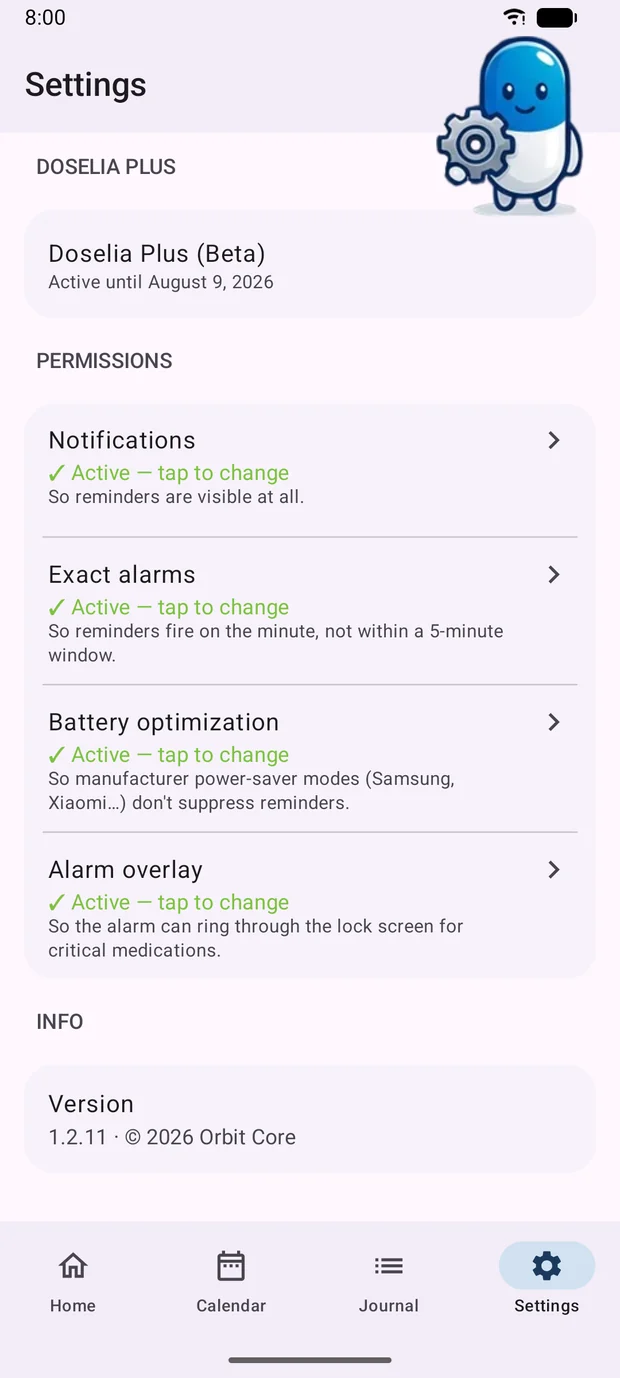
Open Settings at the bottom right of the app and scroll to the “Permissions” section. There are four entries and all four need to say “Active”. Tap any red “Not granted” and confirm in the Android dialog.
Notifications make reminders visible in the first place. Exact alarms make them fire on the minute instead of somewhere inside a five-minute window. Battery optimisation is what stops Samsung, Xiaomi and others from shutting the app down in the background. The alarm overlay allows the full-screen alarm for critical medications to appear over the lock screen.
The app asks on first start
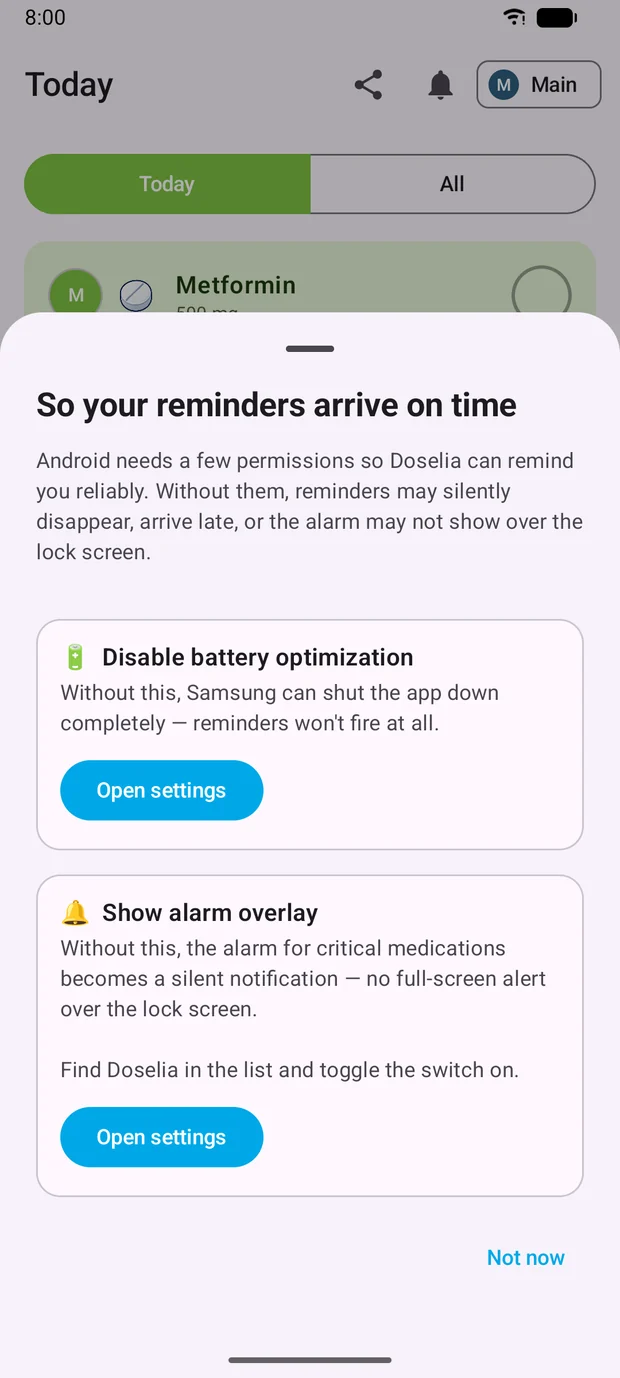
Right after installation Doselia shows this sheet by itself. If you tapped “Not now” back then, you can grant the permissions at any time from Settings — nothing is lost.
If nothing arrives even then
Some manufacturers add their own power-saving features that Android does not report. On Samsung it is “Battery” → “Allow background usage”, on Xiaomi it is “Autostart”, on Huawei it is “App launch” set to manual. Doselia has to be allowed in each of those.
If the reminder does arrive but stays silent, it is the sound rather than the permissions: Settings holds the default tone, and every medication can carry a tone of its own on top of that.
In short
Four green checkmarks in Settings, plus an exception in your manufacturer’s power saver — after that reminders arrive reliably.
Getting started: adding a medication
The wizard walks you through seven steps. Only the name and the dosage are required; everything else can be skipped and changed later. You start it from the green button at the bottom right of the home screen.
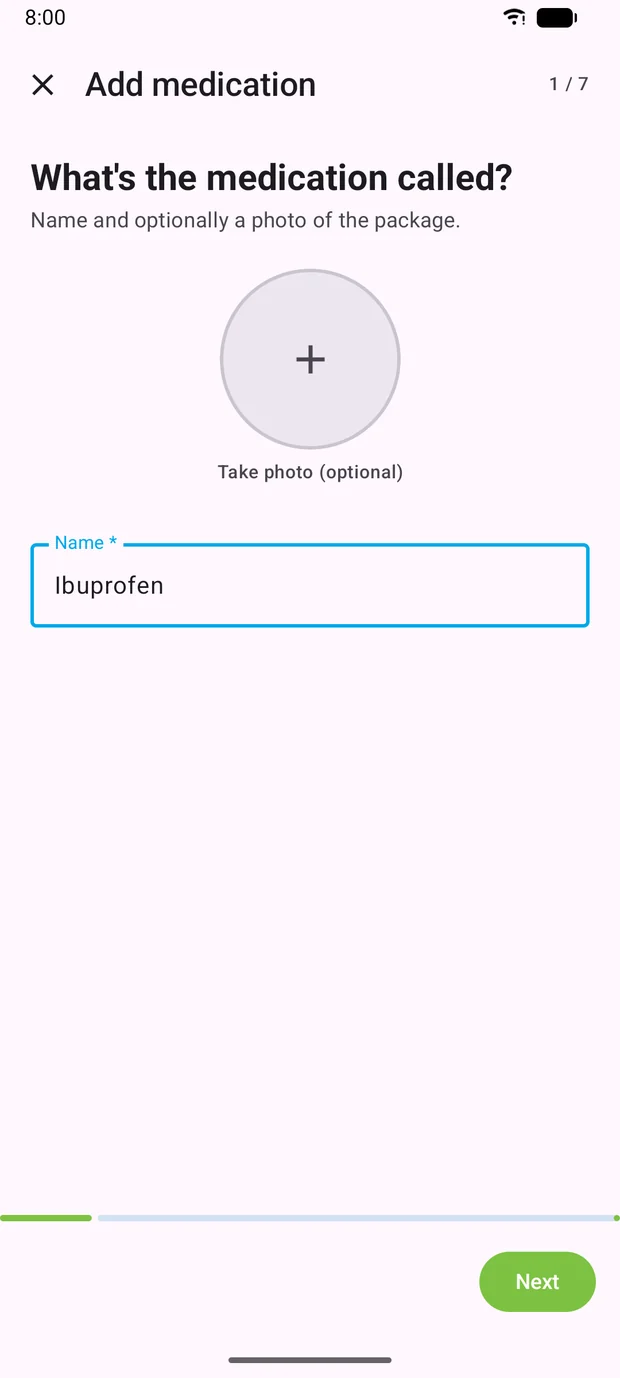
1. Name
The name is the only thing you really need. If you like, take a photo of the package as well — it shows up in the list later and helps tell similar boxes apart.
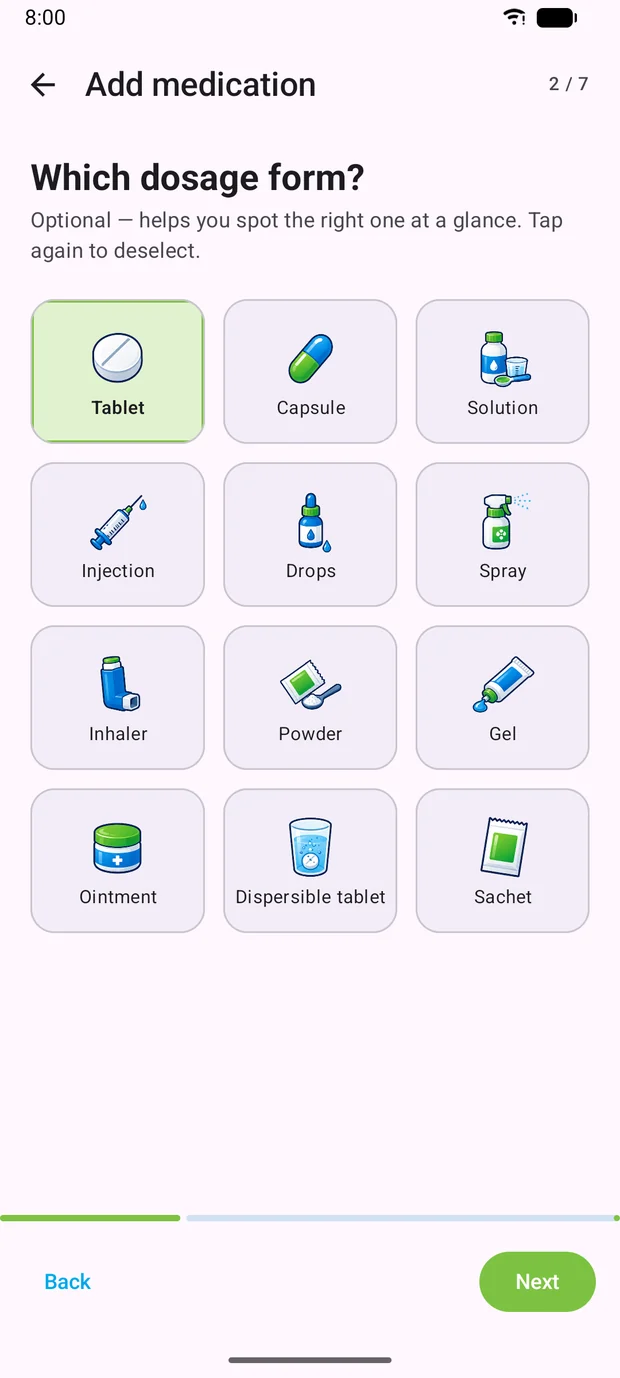
2. Dosage form
Tablet, capsule, drops, injection and more. The choice is optional; it appears as a small icon in the list so you can see at a glance what a medication is.
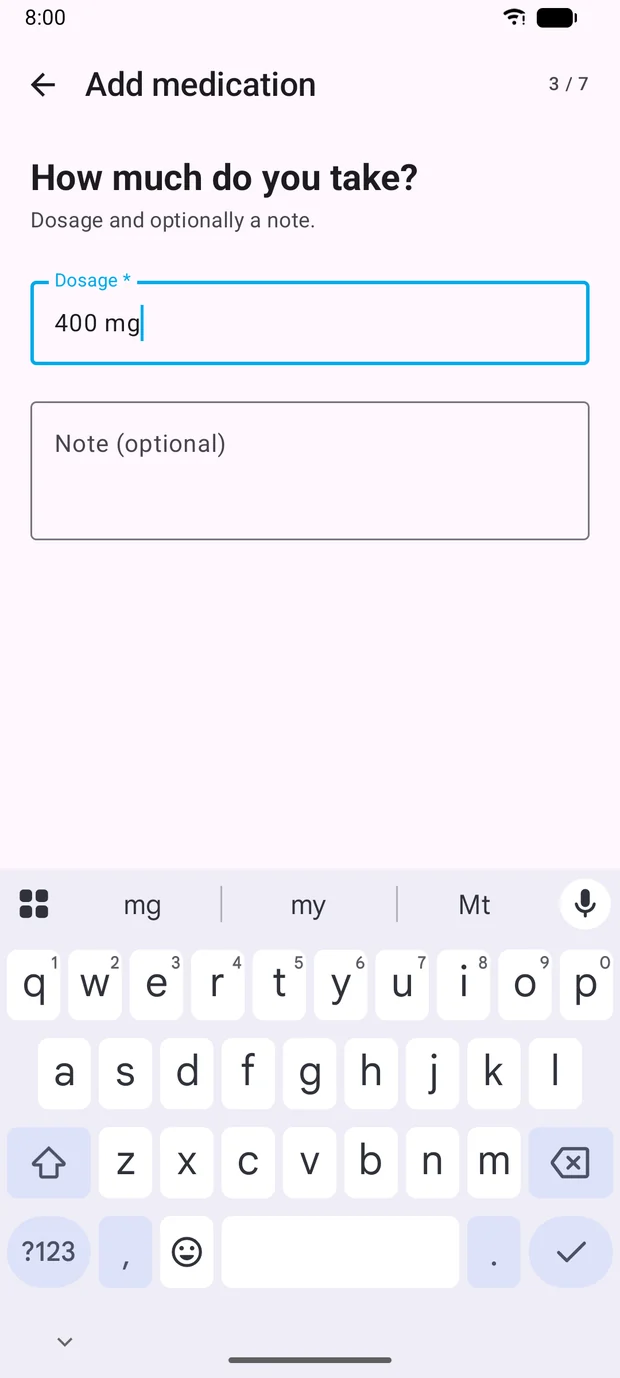
3. Dosage
Write the dosage the way it appears on the package or the prescription — for example “400 mg” or “1 tablet”. The note field below suits hints such as “with food”.
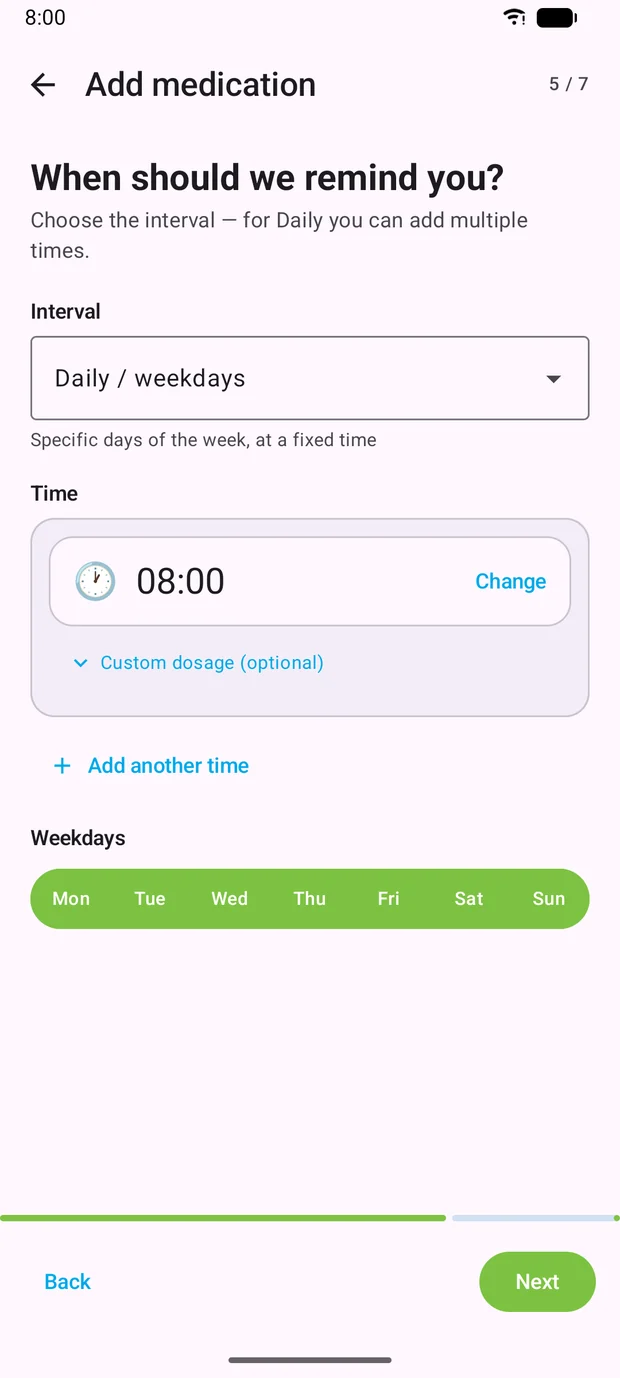
4. and 5. Period and reminder times
First the wizard asks for a start and an end. Both may stay empty, which means “starting now, no end date”. For a course of antibiotics you enter the end here and the reminders stop on their own.
Then you set the interval. With “Daily / weekdays” you pick one or more times and the days of the week to be reminded on. “Add another time” puts morning and evening into the same medication, each with its own dosage if they differ.
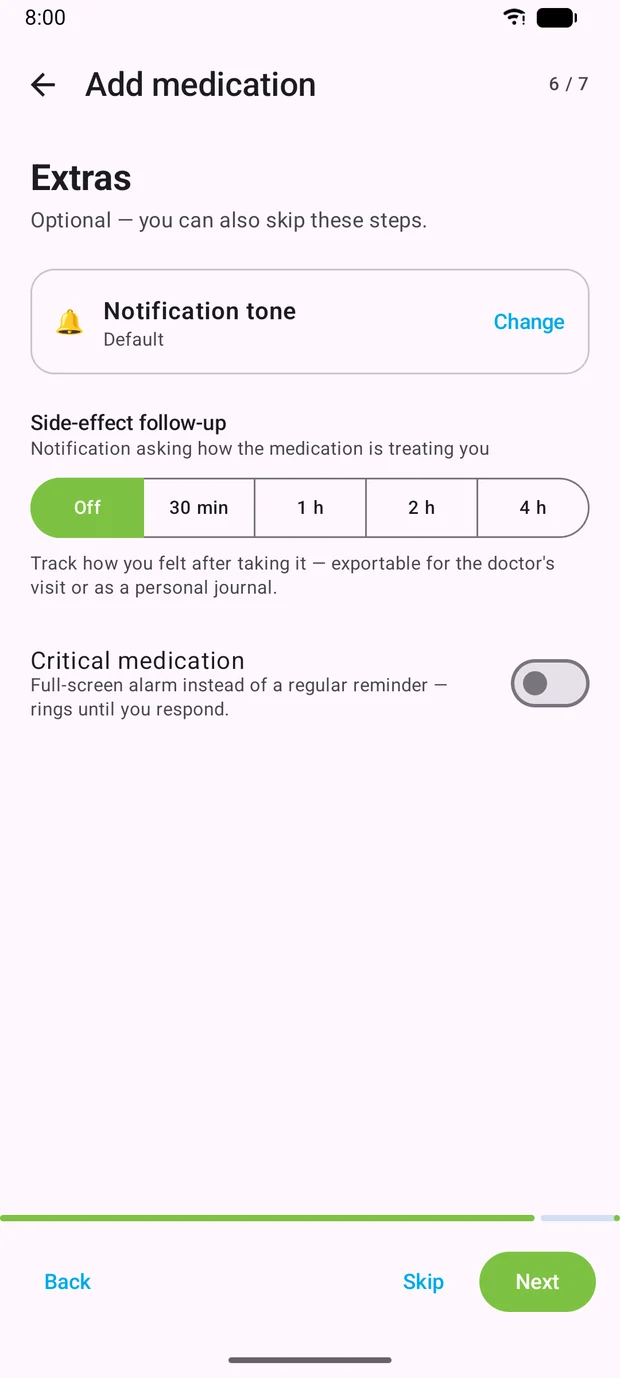
6. Extras
Optional: a tone just for this medication, a follow-up question about side effects some time after the dose, and the “Critical medication” switch. Critical means a full-screen alarm rings until you respond, instead of a silent notification.
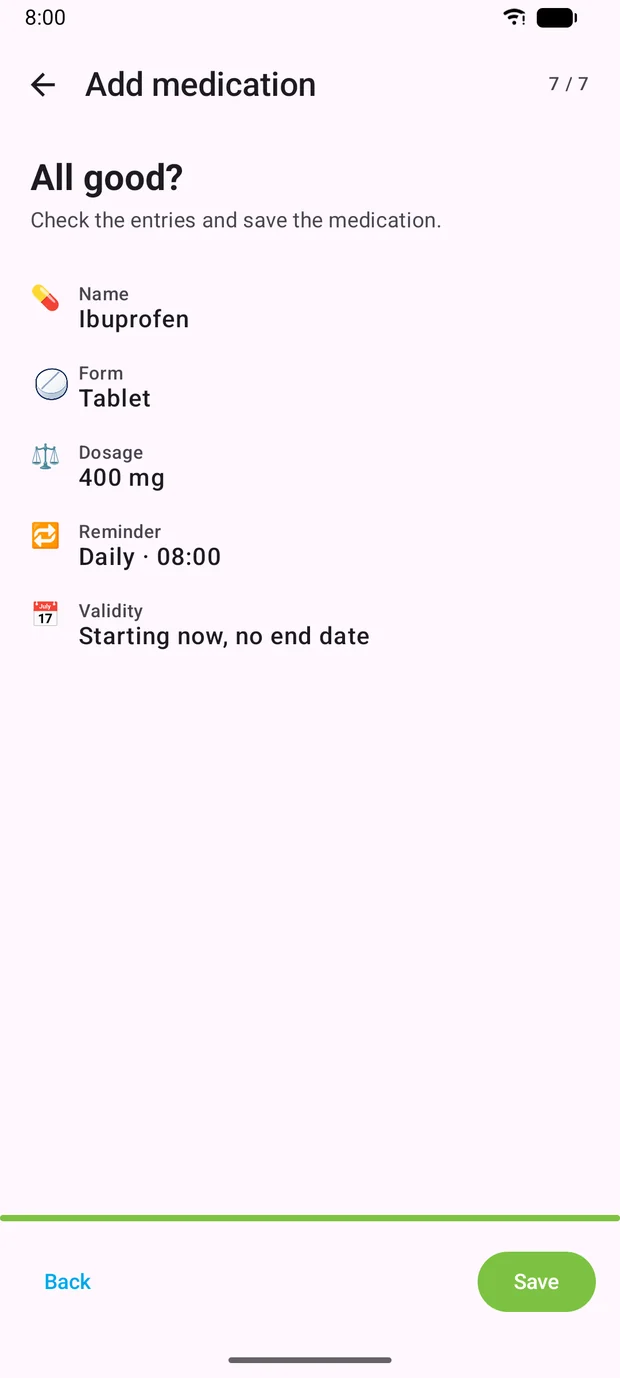
7. Check and save
The last step sums everything up. If something is off, go back and correct it; “Save” creates the medication and arms the reminders right away.
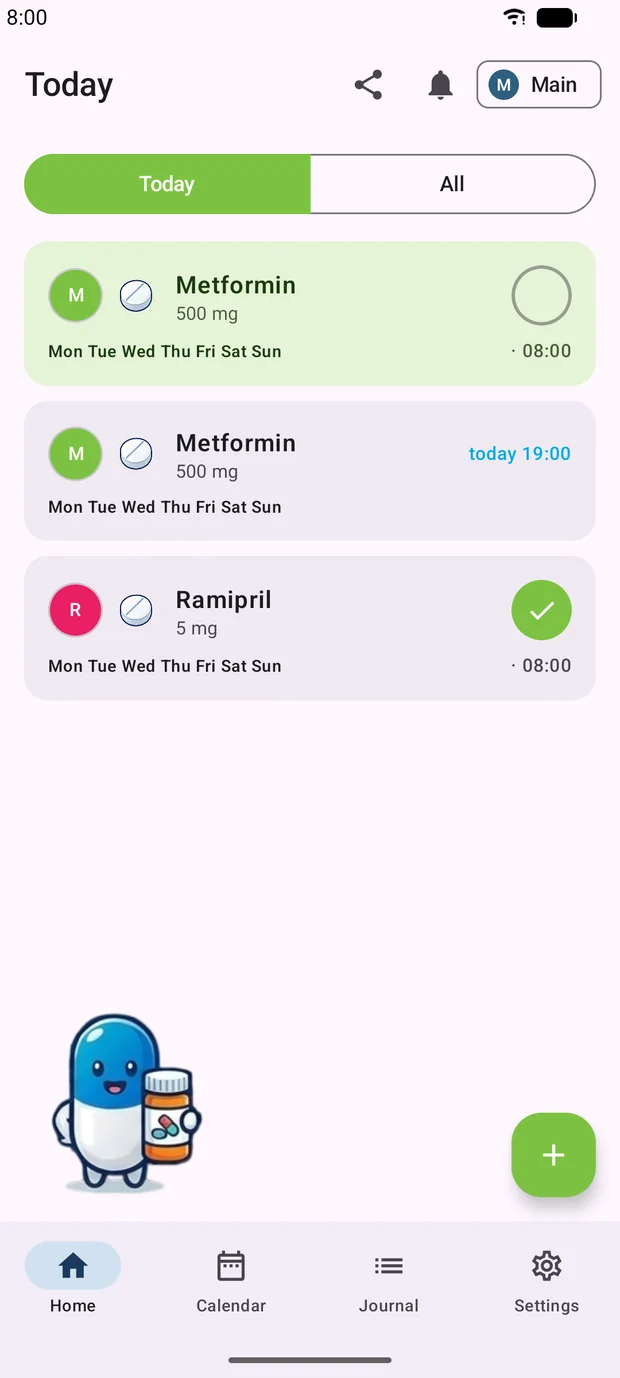
Day to day
The home screen shows what is due today. A tap on the circle at the right marks a dose as taken; a long press opens the other states such as “skipped”. The “All” tab lists every medication, including those not due today.
Journal: recording your readings
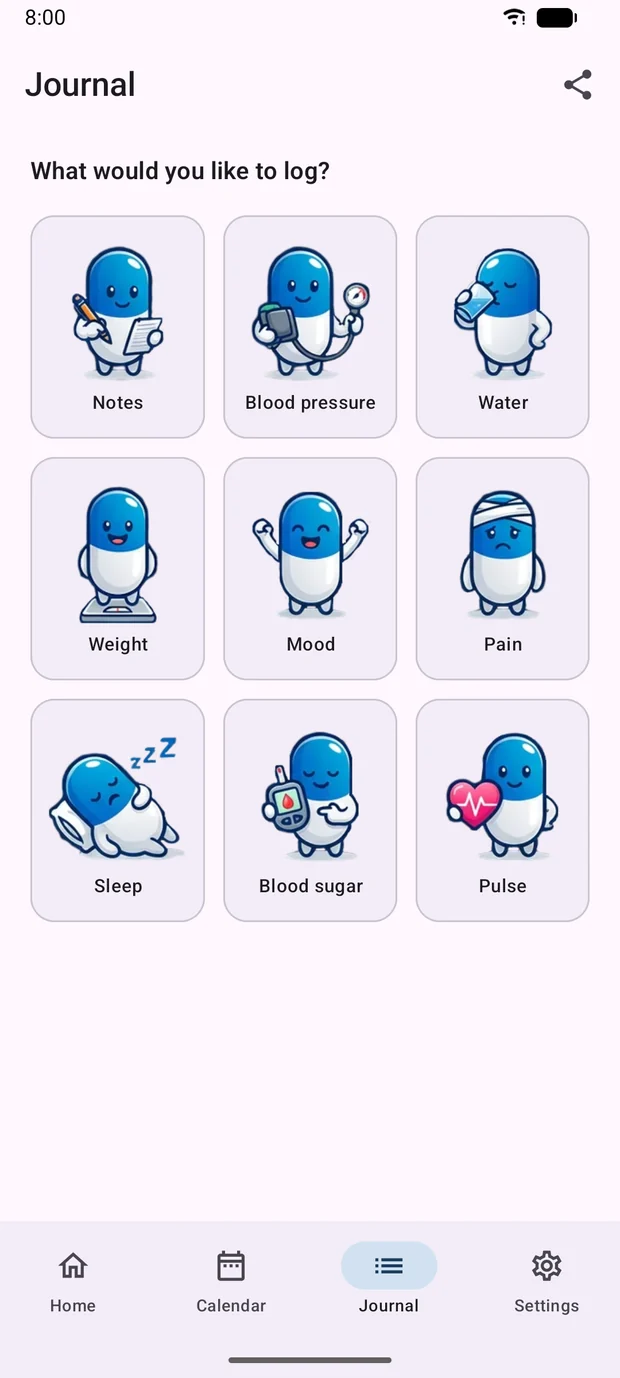
Alongside medications, Doselia keeps a journal for everything your doctor asks about at the next appointment: blood pressure, weight, pulse, blood sugar, sleep, pain, mood, water intake and free-form notes.
Pick a category
The “Journal” tab in the bottom bar opens the overview. Each tile leads to its own list with its own entry form — two values plus pulse for blood pressure, a single number for weight.
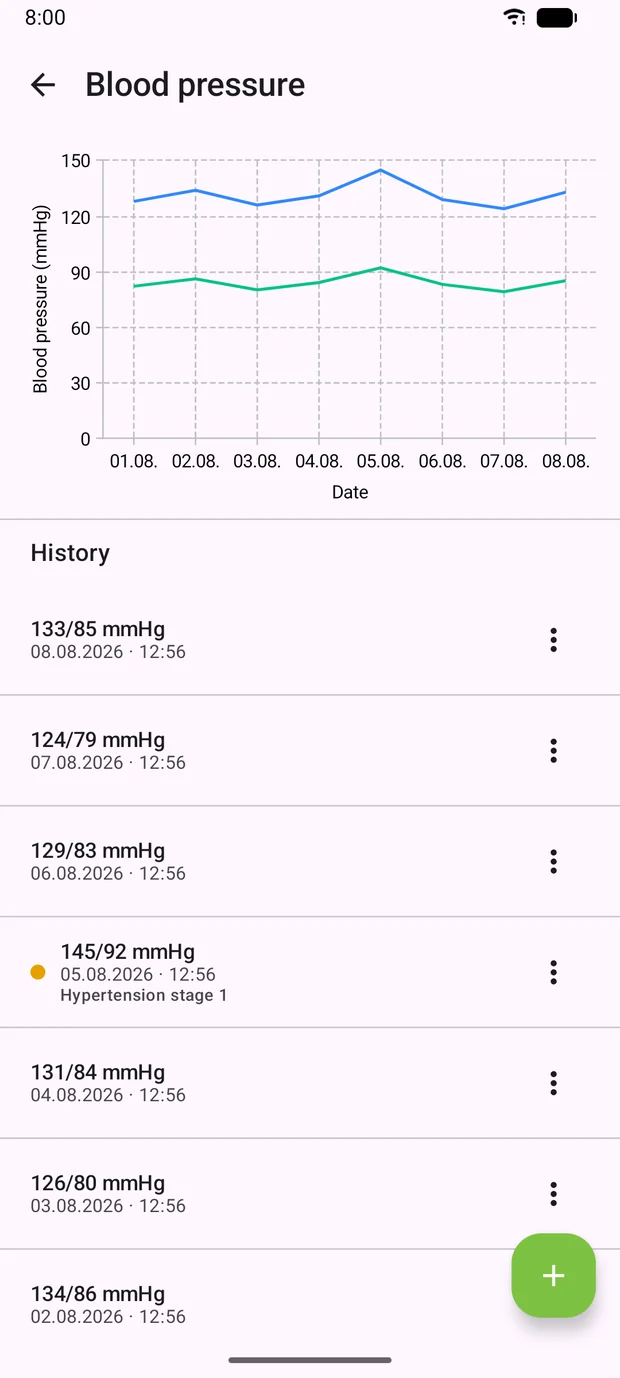
Reading the trend
Above the list Doselia draws the last two weeks as a curve. For blood pressure, notable readings are classified as well — “Hypertension stage 1” in the screenshot. That is a classification of the measured value, not a diagnosis; your doctor still makes that call.
With Doselia Plus you can export the history as PDF or CSV and take it to the appointment.
Doselia Plus and the free version
Doselia works without an account and without a subscription: medications, reminders and the journal are all included. Plus adds the features that need a server — and turns the ads off.
| Free | Plus | |
|---|---|---|
| Medications and reminders | yes | yes |
| Journal with all categories | yes | yes |
| Calendar and dose history | yes | yes |
| Ads | yes | none |
| Own tone per medication | — | yes |
| Critical medications with full-screen alarm | — | yes |
| Side-effect follow-up | — | yes |
| Export as PDF and CSV | — | yes |
| Multiple profiles | — | yes |
| Web dashboard in the browser | — | yes |
| Backup and sync through your account | — | yes |
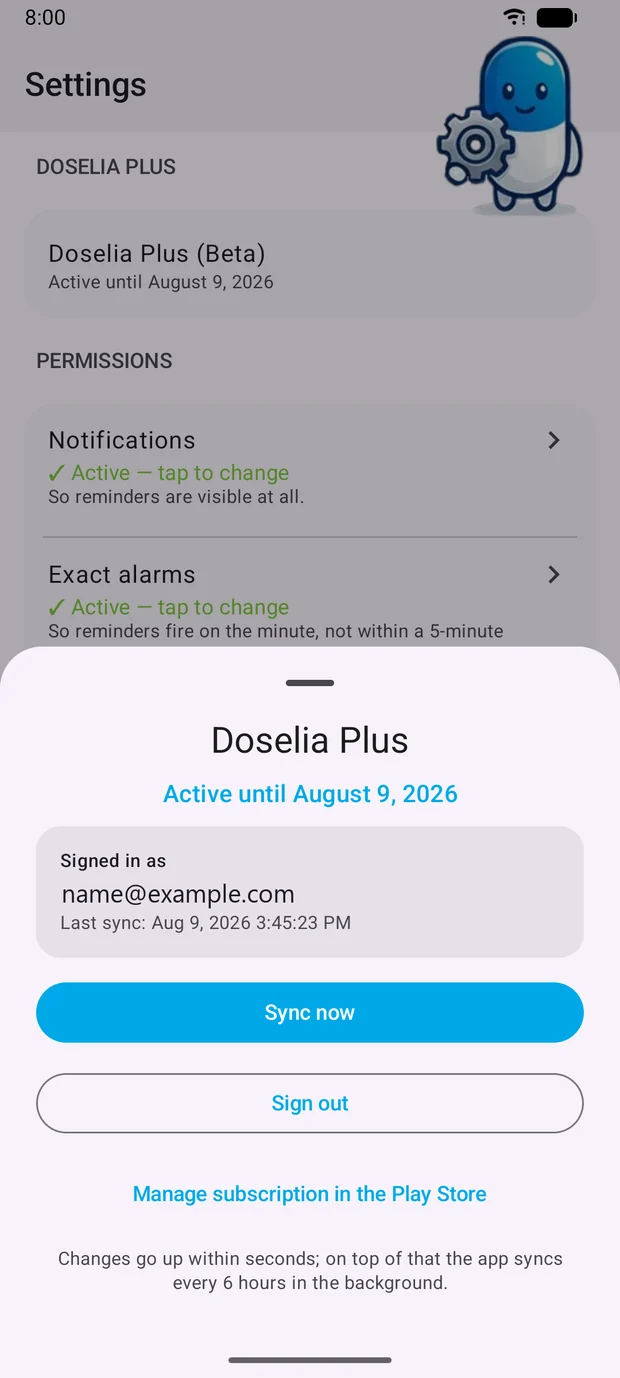
The Plus view in Settings shows the term, the linked account and when the app last synced.
You subscribe in the app on your Android phone; the subscription is managed and cancelled in the Play Store. The account is only needed for Plus — without a subscription the app runs entirely on the device. Changes go up within seconds, and on top of that the app syncs every six hours in the background.
Your health data stays with us: hosted in the EU, no ads in the web dashboard, no tracking.